This guide walks you through setting up Google Tag Manager (GTM) to collect link click data for precise heatmaps.
1. Create Link Click Trigger
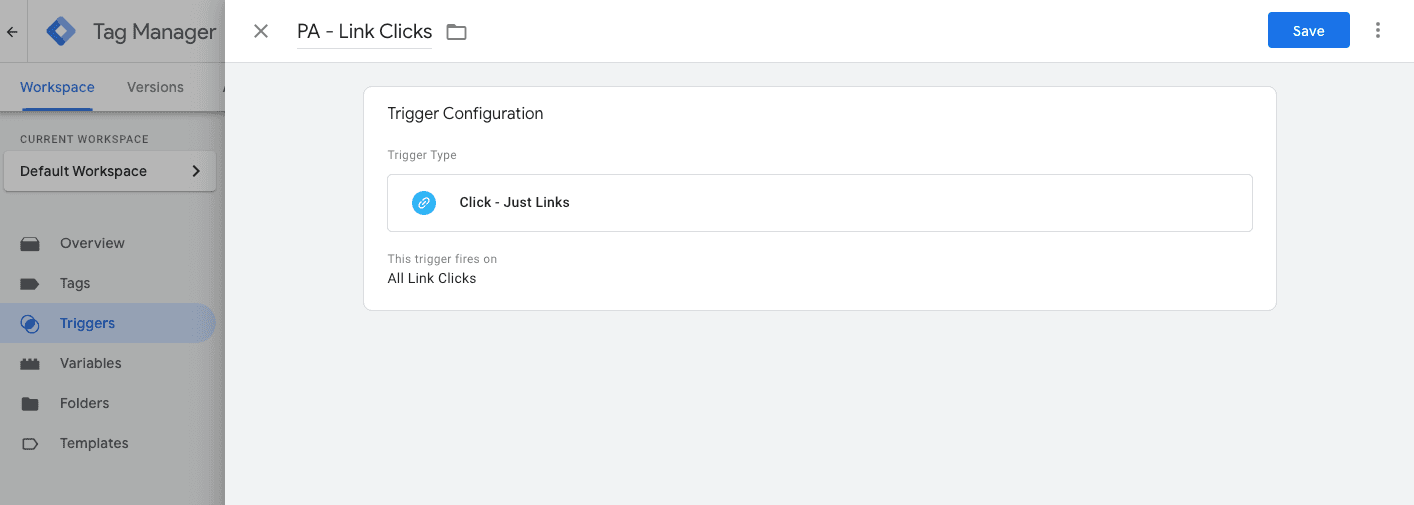
First, we'll create a trigger that captures all link interactions on your website:
- Go to Triggers section
- Click "New" to create a trigger
- Choose "Just Links" as the trigger type
- Configure it to capture "All Link Clicks"
2. Enable Required Variables
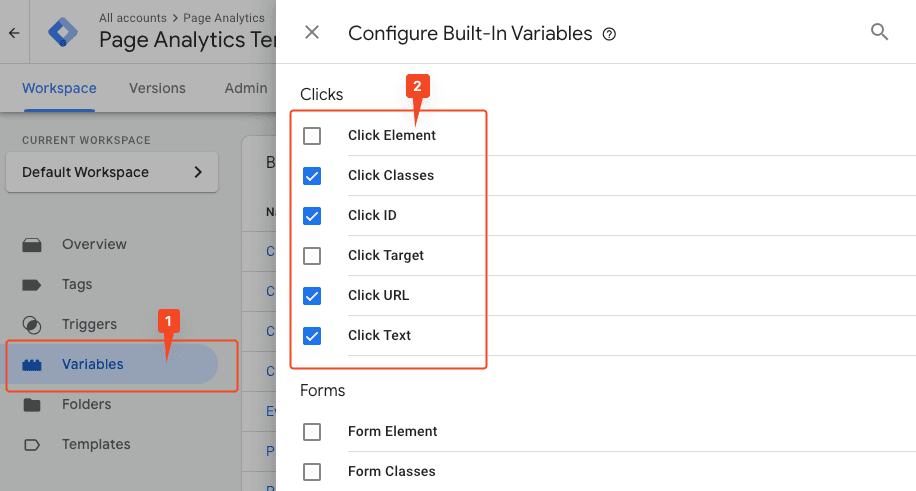
Next, enable the built-in variables that we'll need for precise tracking:
In the Variables section, under "Configure", enable these Click variables:
- Click Classes
- Click ID
- Click URL
- Click Text
3. Create GA4 Event Tag
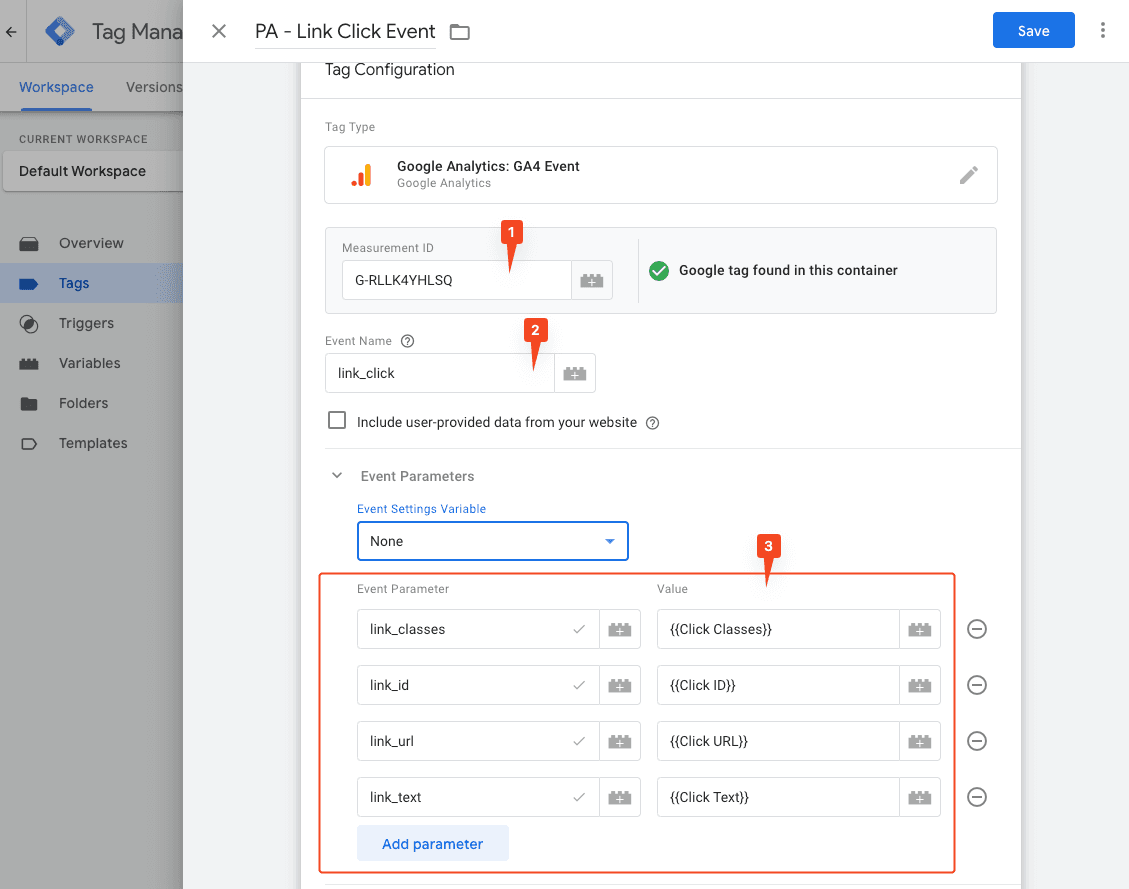
Now, set up a GA4 event tag to send the interaction data:
- Create a new tag of type "Google Analytics: GA4 Event"
- Enter your Measurement ID
- Set Event Name as "link_click"
- Add these Event Parameters:
- link_classes: {{Click Classes}}
- link_id: {{Click ID}}
- link_url: {{Click URL}}
- link_text: {{Click Text}}
4. Connect Tag and Trigger
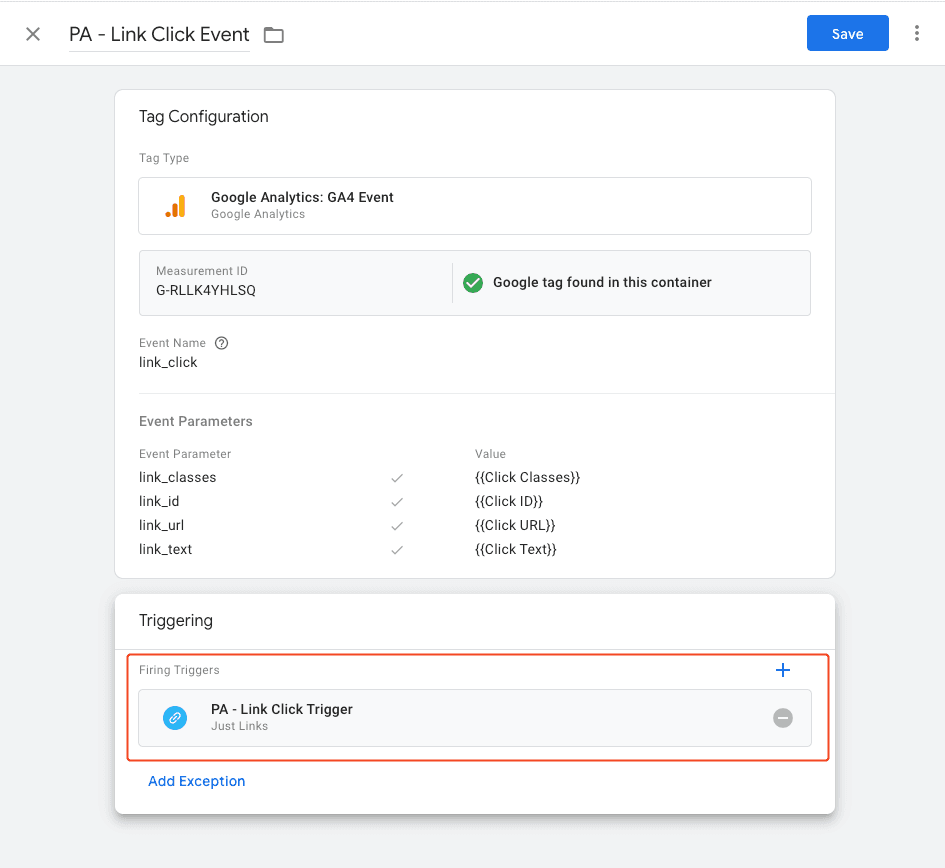
Finally, connect your new tag to the link click trigger:
After completing the setup, click "Submit" to publish your changes. Wait for data to appear in GA4 DebugView to verify the configuration.
5. Enable Precise Analytics
To complete the setup, email Roman:
- Send an email to roman@pageanalytics.io
- Include the following information:
- Your email address, if different from the sender.
- Your website URL
- Request activation of precise Page Analytics tracking
Roman will review your configuration and enable precise analytics within 1-2 business days.