The Page Analytics sidebar shows your analytics right in the browser. No need to switch tabs. View traffic data and visitor behavior while navigating your website.

After installing the Page Analytics browser extension and completing authentication, you'll see a "PA" button on the right side of your website.
1. Install the Page Analytics browser extension from the Chrome Web Store
2. Authenticate with your Google Analytics account
3. Visit your website to see the "PA" button
4. Click the button to reveal your analytics sidebar
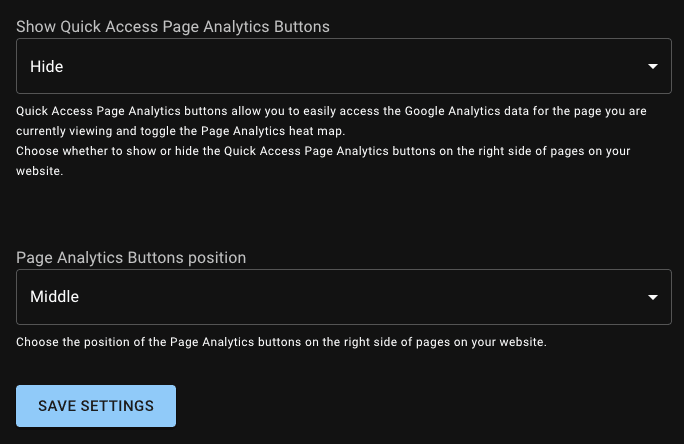
Customize the sidebar button's position or visibility through your Page Analytics settings at pageanalytics.io/settings. Adjust the "Page Analytics Buttons position" and "Show Quick Access Page Analytics Buttons" options to match your preferences.
The sidebar's collapsible settings section lets you adjust date ranges, compare periods, and filter your data.
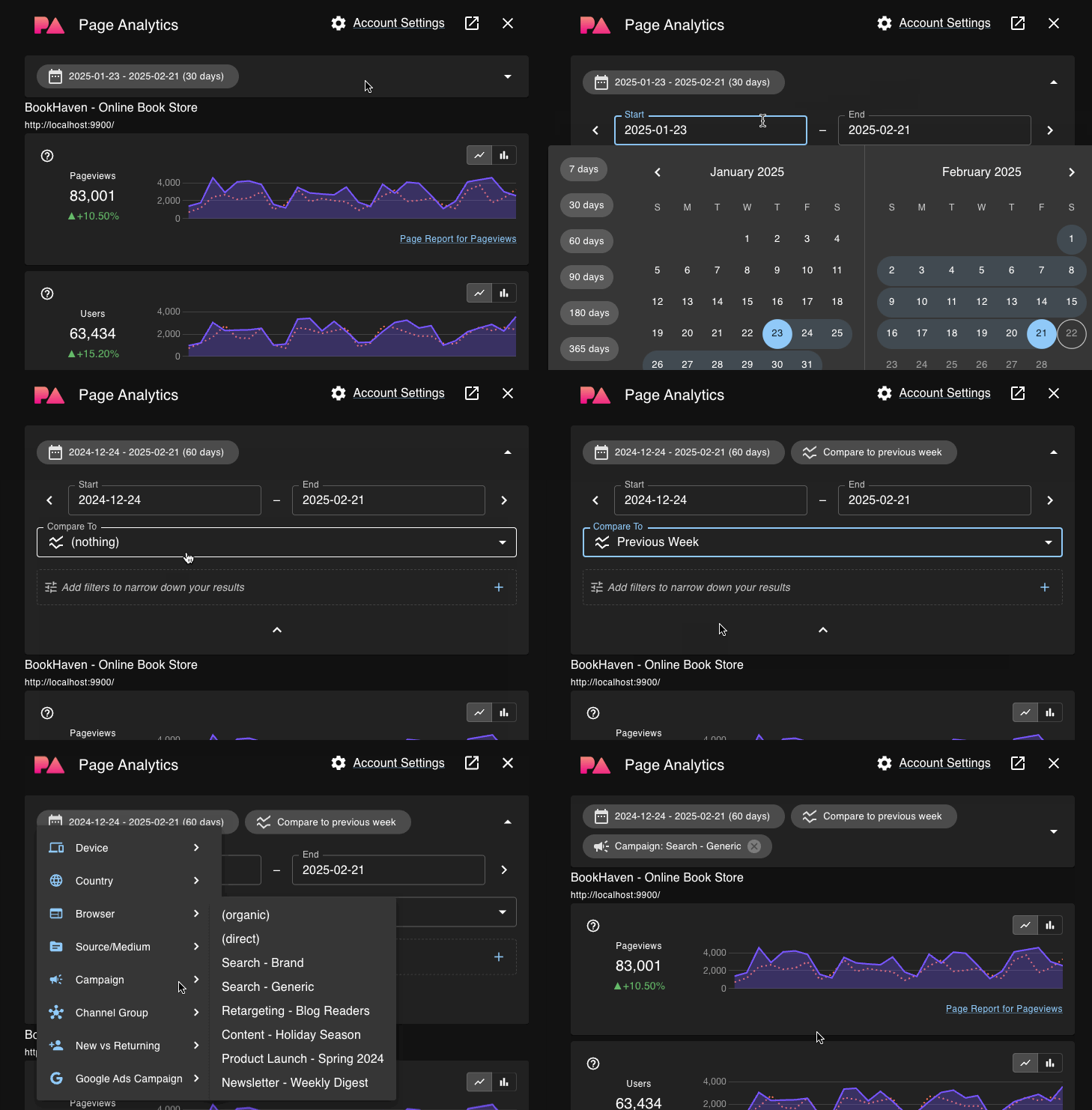
Compare current data with previous periods (week, month, etc.) to spot trends and understand what's changing on your site.
Traffic and visitor data comes from your Google Analytics account. Keyword data comes from Google Search Console.
