
Click heatmaps
A click heatmap colors the links and elements on a page by how often visitors click them. The most-clicked links light up; the rarely-clicked ones stay dim. You see this on the real page, on top of your own design, so you can tell at a glance what people actually use.
The data comes from your Google Analytics 4 property. Page Analytics matches click events to the links on the page you're viewing and shades each one.
Two kinds of heatmap
Link highlights
The standard heatmap colors each link on the page by its click count. Every link that GA4 has click data for gets a colored highlight. This works with the data GA4 already collects, so there's nothing extra to set up.
Precise heatmaps
Precise heatmaps track every link click on the page, including clicks on links that GA4's default tracking misses. They need a one-time Google Tag Manager setup that sends a link_click event to GA4 for each click, plus activation on our side. Once a page is on precise tracking, the heatmap window labels it "Precise tracking" instead of "Standard tracking."
See Setting up precise heatmaps for the full Tag Manager walkthrough.
Opening a heatmap
- Open a page on your own site with the Page Analytics extension installed.
- Click the heatmap button. It's on the edge of the page next to the "PA" launcher, and there's also a heatmap button in the sidebar header.
- The page's links shade in, and a draggable heatmap window appears in the bottom-left corner.
You can also toggle the heatmap with a keyboard shortcut. The window can be collapsed to just its title bar or expanded to show the full legend, and you can drag it anywhere on the page. Click the close button to turn the heatmap off.
On a narrow or short screen, the window uses a compact layout with the selected link's click count, the color legend, and summary cards for page views, bounce rate, and search clicks. The date range appears as a label. Report settings, source details, and charts remain available in the full desktop layout.
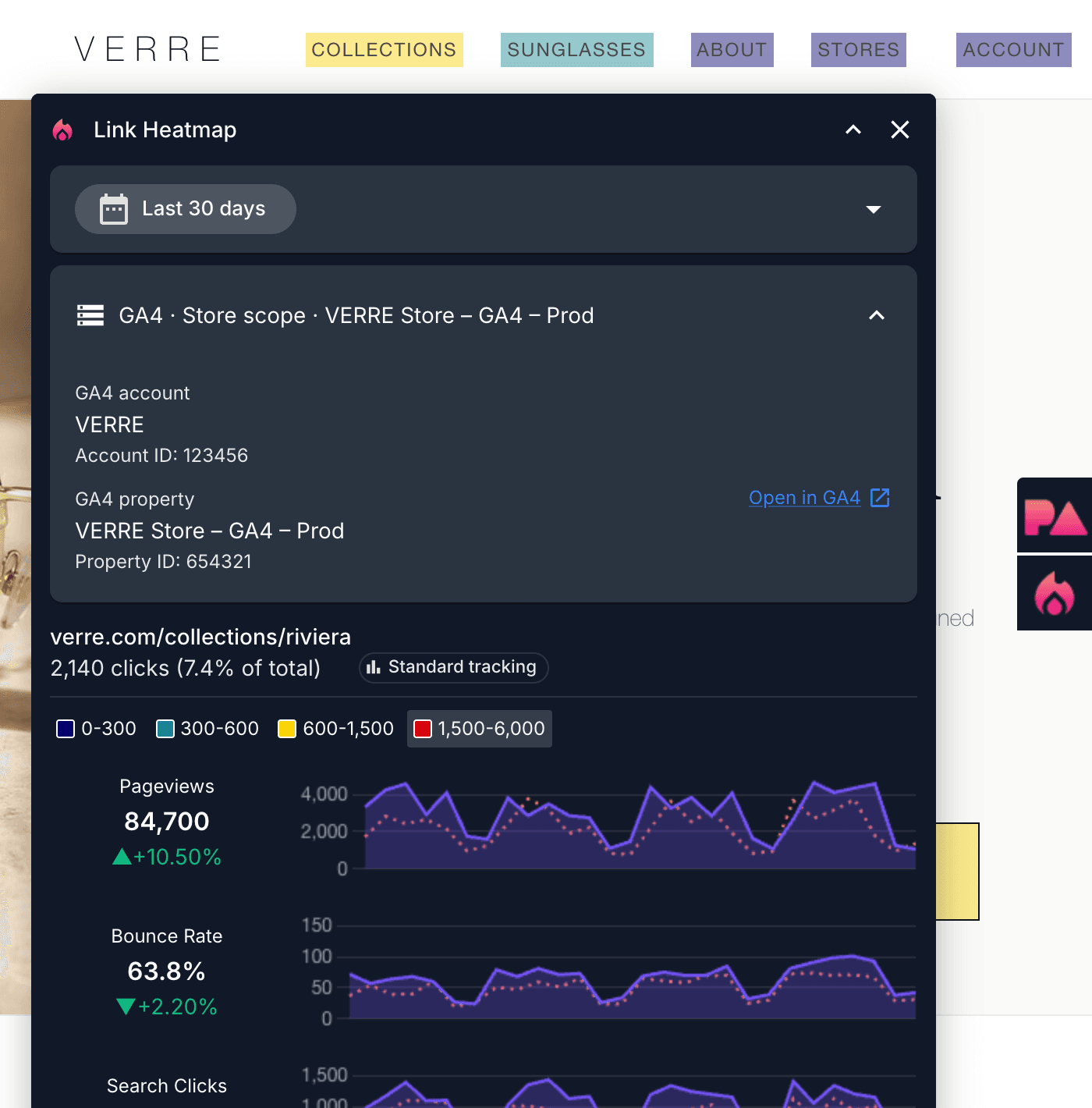
Check the heatmap's GA4 source
The data source row starts with GA4 and names the property that supplies the heatmap's click data. If the page matches a configured analytics scope, the row shows that scope too. Open the row to see the GA4 account and property names and IDs. Use Open in GA4 to open the property in a new tab.
The disclosure may also show a connected Search Console property because the heatmap window includes page report metrics. Search Console does not supply the heatmap's click counts.
Reading the colors
The heatmap window shows a color legend. Each entry pairs a color with the click-count range it represents, so you can map any highlighted link back to a number. Colors run from the low end of the range to the high end, so the brightest or most intense colors mark the links that get the most clicks.
Hover over any highlighted link to see its title, its exact click count, and the percentage of total page clicks it received. The matching legend entry is highlighted while you hover. On a touch device, tap a highlighted link instead. While the heatmap is on, the tap shows the click information without opening the link.
The window also lets you adjust the date range and other report settings for the page, so you can see clicks over a longer or shorter period.
Color palettes
You can change the palette the heatmap uses. There's a wide set of color schemes to pick from, including rainbow, single-hue, and high-contrast options, so you can choose one that reads well against your site's design or works for color-vision accessibility.
Set your palette in Settings, under the heatmap options. You can also change how many color buckets the heatmap splits clicks into. More buckets give finer detail; fewer give a simpler high-versus-low view.
Troubleshooting
If some links on the page aren't highlighted, or the counts look lower than you expect, GA4's default tracking may be missing those clicks. Precise tracking captures them. See Why some links are missing from the heatmap.