
Troubleshooting missing link highlights
Some links don't show up in your Page Analytics heatmaps. This page covers the four common reasons and how to fix each one.
How heatmap links work
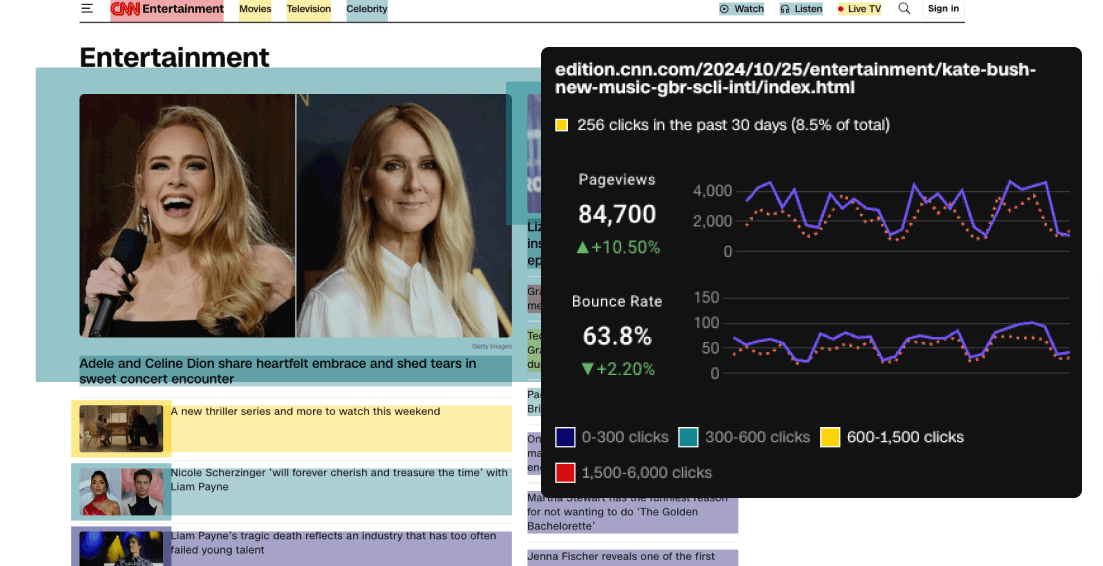
Page Analytics heatmaps highlight links to your other pages and external resources. Each link gets a color that shows how often visitors click it, and hovering over a link shows the visit count.
Issue 1: external links not tracking
External links point outside your site. Google Analytics doesn't track them by default, so they show no heatmap data while your internal links work fine.
You'll see this when:
- Internal links (pages within your domain) show heatmap data
- External links (other websites) show no data
- Hovering over an external link shows no click count
The cause is Google Analytics Enhanced Measurement being off or misconfigured. This often happens after you set up a new Google Analytics 4 property or migrate from Universal Analytics.
To fix it:
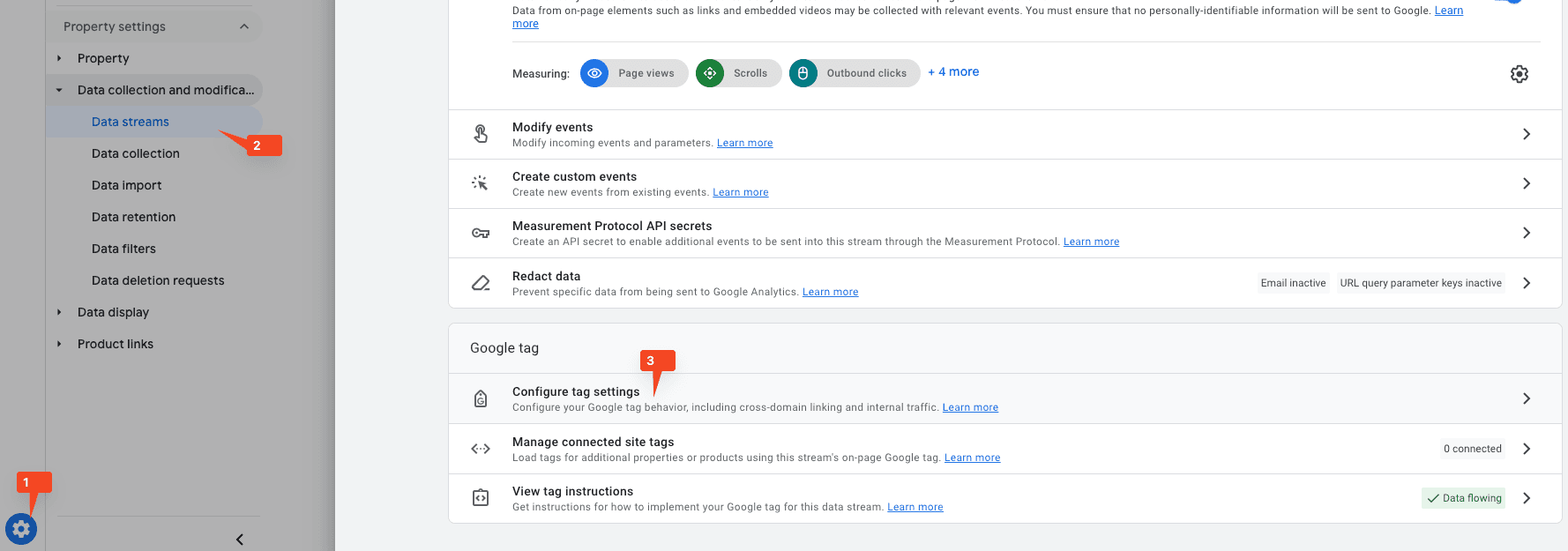
- Go to Google Analytics Admin settings
- Under Data collection and modification, click Data streams
- Click your data stream name
- Find the Enhanced measurement section and slide the switch to ON
- Click Settings and make sure Outbound clicks is enabled

Issue 2: subdomain and cross-domain tracking
Even with Enhanced Measurement on, some subdomains and related domains aren't tracked as external links because of your cross-domain tracking settings.
You'll see this when:
- Links to fully external sites (like social media) show tracking data
- Links to your subdomains (like blog.yoursite.com or help.yoursite.com) show no data
- The problem stays even with Enhanced Measurement enabled
The cause is your Google Analytics configuration treating these subdomains as part of your main domain through cross-domain tracking. This tracks user journeys across subdomains, but it stops those links from counting as outbound clicks.
Common examples:
- help.example.com
- blog.example.com
- shop.example.com
To fix it:
- Open Google Analytics and select Admin
- In the left menu, find Property settings
- Under Data collection and modification, click Data streams
- Select your data stream
- Scroll down and expand Configure tag settings
- Click Configure your domains
- Review your domain list and turn off cross-domain tracking for the domains you want to track as external links
Issue 3: fragment links not tracking
Fragment links (also called anchor links or hash links) navigate within the same page. They're URLs with a hash symbol (#) followed by an identifier, and they don't show up in your heatmaps.
You'll see this when:
- Links to other pages show heatmap data normally
- Links that jump within the same page (#section-name) show no data
- Hovering over a fragment link shows no click count
The cause is that standard Google Analytics tracking doesn't capture fragment link clicks. These links change only the URL fragment without reloading the page, so they don't trigger page views or navigation events.
Common examples:
- Table of contents links: #introduction, #chapter-1
- "Back to top" buttons: #top
- Tab navigation in single-page applications: #tab-1, #tab-2
- Section navigation in documentation: #installation, #usage
To fix it, set up precise heatmap tracking. It captures every link click, including fragment links, dynamic navigation, JavaScript-powered links, and single-page application routing.
Issue 4: internal links with rel="noreferrer" not tracking
Some internal links (links to pages on your own domain) aren't highlighted in your heatmaps, even though Enhanced Measurement is on and other internal links work.
You'll see this when:
- Most internal links show heatmap data and highlight correctly
- Specific internal links consistently show no data or highlighting
- The affected links have a
rel="noreferrer"attribute in their HTML - External links and other internal links work fine
The cause is how Page Analytics highlights internal links: it queries Google Analytics for every page whose referrer is the current page. When a link has rel="noreferrer", the browser doesn't send referrer information to the destination page. Google Analytics never records the current page as the referrer, so Page Analytics can't retrieve click data for that link.
To fix it, remove the rel="noreferrer" attribute from internal links on your site:
<!-- Before (not tracked) -->
<a href="/about" rel="noreferrer">About Us</a>

<!-- After (tracked correctly) -->
<a href="/about">About Us</a>
If your content management system or framework adds this attribute automatically, check your settings or template files to remove it for internal links.
What rel="noreferrer" does
The rel="noreferrer" attribute stops the browser from sending referrer information to the destination page. The destination site won't know where the visitor came from, which can matter for user privacy when you link to external sites.
This is different from rel="noopener", which stops the destination page from reaching the originating page through the window.opener object (a security concern). Many browsers treat noreferrer as implying noopener behavior, but the two serve different purposes.