
Install the Page Analytics extension
Page Analytics runs as a Chrome extension that adds in-page analytics to your own website. Install it once, sign in with Google, and you can open traffic and search data on any page you visit.
Install from the Chrome Web Store
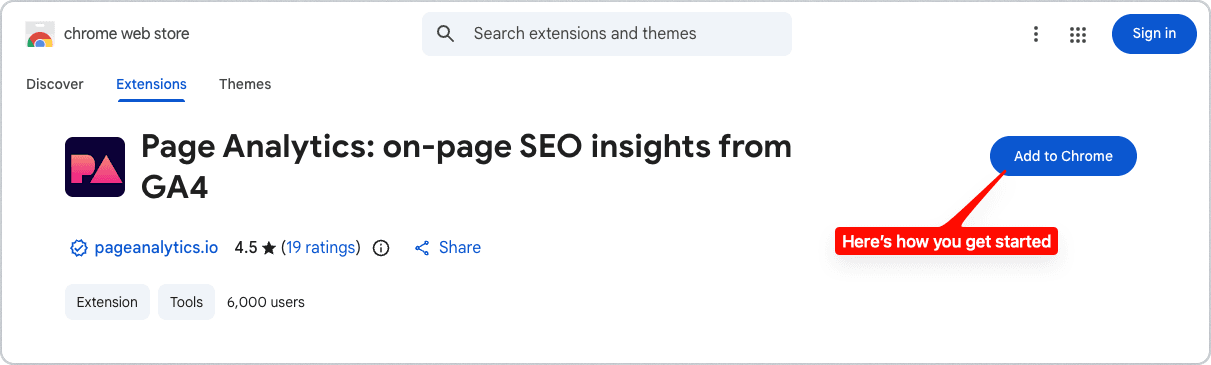
- Open the Page Analytics listing on the Chrome Web Store.
- Click Add to Chrome, then confirm in the dialog Chrome shows.
- Pin the extension so its icon stays visible. Click the puzzle-piece (Extensions) button in the Chrome toolbar, find Page Analytics, and click the pin icon.
The extension also works in other Chromium browsers, such as Microsoft Edge, through the Chrome Web Store.
Sign in with Google
Page Analytics reads your data through your Google account, so the first step is signing in. Click the Sign in with Google button, either from the extension or on the Page Analytics website, and pick the Google account that has access to your analytics.
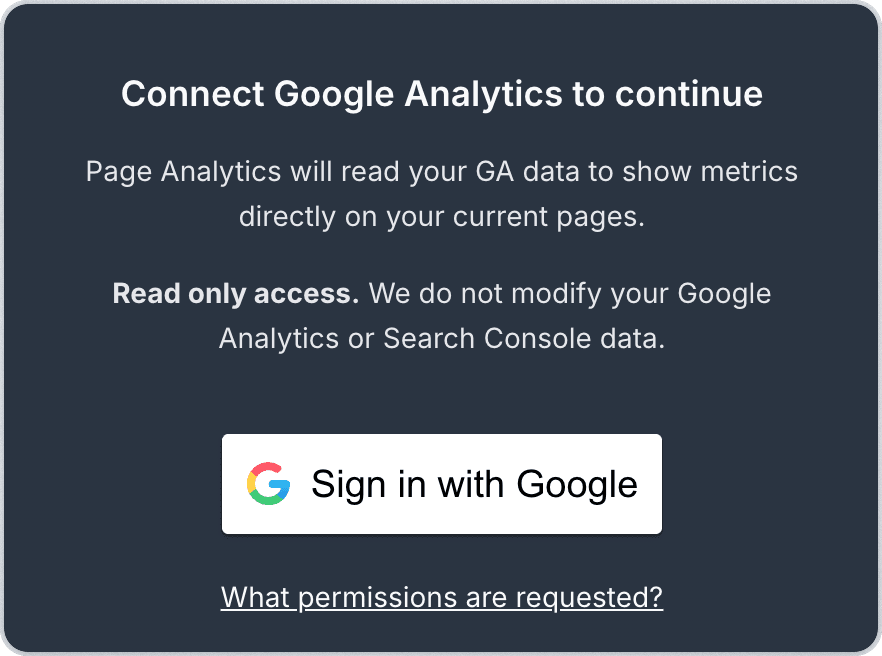
Sign-in uses Google OAuth. Page Analytics never sees your Google password; Google handles the login and asks you to approve access.
What permissions are requested and why
On the Google consent screen you are asked to grant two read-only permissions:
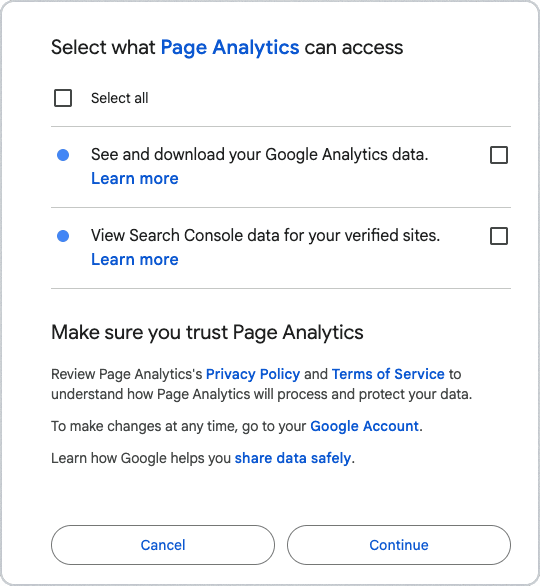
- Google Analytics (required). Read-only access to view metrics such as pageviews, users, sessions, and conversions.
- Google Search Console (recommended). Read-only access to view search queries, impressions, and clicks for your pages.
Page Analytics cannot edit or delete anything in your Google Analytics or Search Console, and it cannot change your settings or properties.
You can review or revoke this access at any time from your Google Account connections page.
Open analytics on a page
After you sign in, browse to any page on a website you own or manage in Google Analytics. Page Analytics shows up in two places:
- The toolbar popup. Click the Page Analytics icon in your Chrome toolbar to open a compact report for the current page. The keyboard shortcut is Ctrl+Shift+U (Command+Shift+U on Mac).
- The in-page sidebar. On a matching page, a Page Analytics button appears pinned to the right edge of the window. Click it, or press Ctrl+Shift+S (Command+Shift+S on Mac), to slide out the full sidebar with the page's report and the heatmap toggle. Press Esc to close it.
If you do not see the in-page button, the current page may not match a property you have connected yet. Connect Google Analytics to start matching your pages.
Next steps
To start seeing data, connect your analytics account.