
Settings
Adjust how Page Analytics looks and behaves from one place in the web dashboard.
Open Account Settings from the navigation bar in the dashboard. The browser extension's options page sends you to the same screen, so every setting below lives in the dashboard and applies everywhere you use Page Analytics. Appearance, heatmap, quick-access, and keyboard settings save as soon as you pick a value. Your invoice details save when you select Save invoice details.
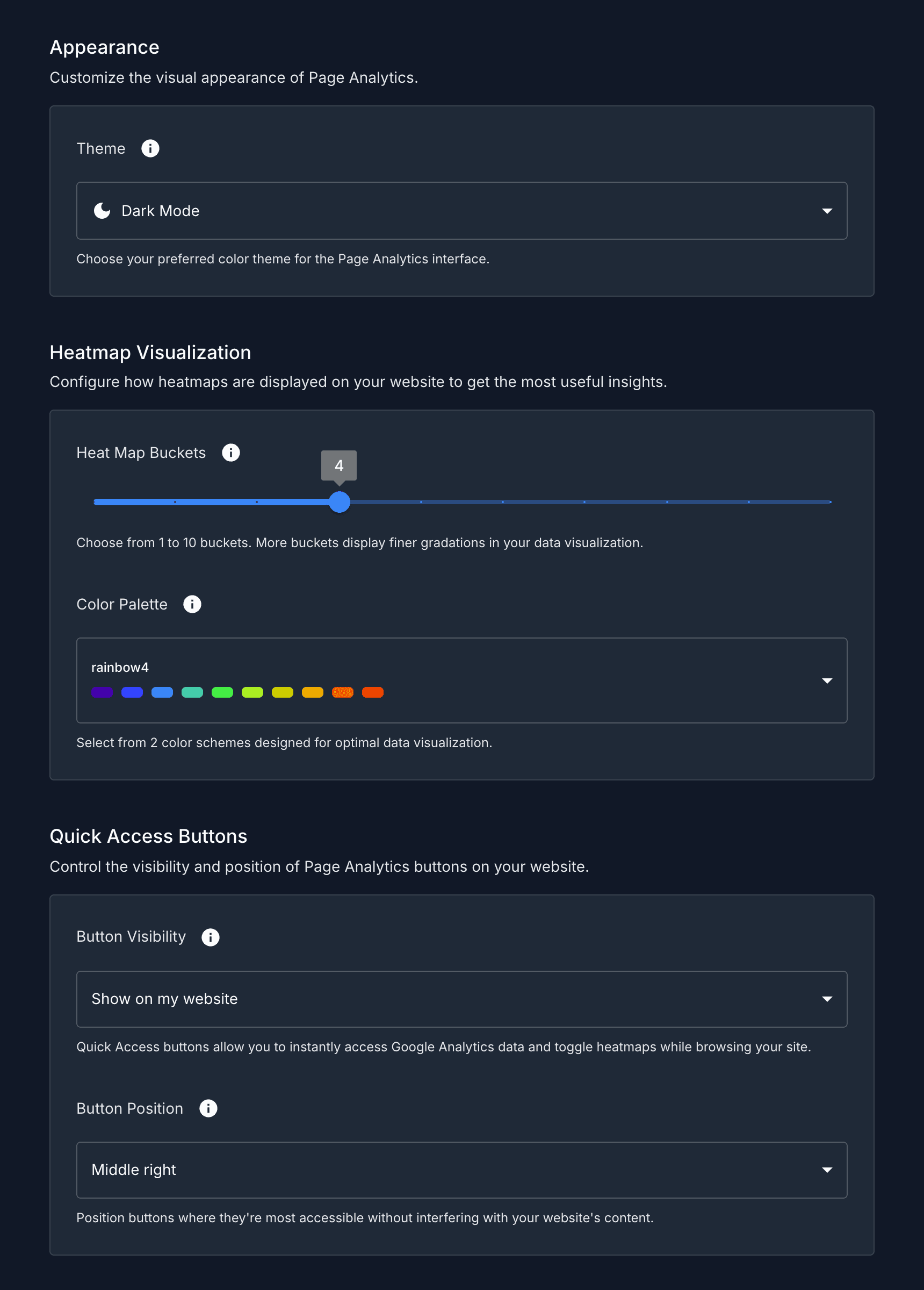
Appearance
Choose the color theme for the Page Analytics interface:
- Light Mode
- Dark Mode
The theme applies to the dashboard and the on-page sidebar. The page reloads when you switch themes so the new colors take effect.
Heatmap visualization
These options control how click heatmaps render on your pages. See Heatmaps for what heatmaps show and how to read them.
Heatmap buckets
A heatmap groups clicks into color bands by intensity. The Heat Map Buckets slider sets how many bands to use, from 1 to 10. More buckets show finer gradations; fewer buckets give a simpler, higher-contrast view.
Color palette
Pick the color scheme used to draw heatmaps. Each option in the Color Palette menu shows a preview swatch of its colors, so you can choose one that reads well against your site's design and meets your accessibility needs.
Quick access buttons
Page Analytics adds buttons to the edge of your site for opening the sidebar and toggling heatmaps while you browse.
Button visibility
The Button Visibility menu decides where the buttons appear:
- Show on my website: display the buttons on your own connected sites.
- Hide completely: never show the buttons.
- Show on all websites: display the buttons on every site you visit.
Button position
The Button Position menu places the buttons along the right edge of the page:
- Top right
- Middle right
- Bottom right
Keyboard shortcuts
A single switch on the settings page turns the extension's keyboard shortcuts on or off. The panel also lists the active shortcuts for toggling the sidebar, toggling the heatmap, and closing the sidebar. For the full list, see Keyboard shortcuts.
MCP server
Page Analytics provides an MCP (Model Context Protocol) server that lets AI tools such as Claude, ChatGPT, Cursor, and Codex read your Google Analytics and Search Console data. From the settings page, follow Manage API keys and setup instructions to create, activate, deactivate, and delete API keys and to copy the setup snippet for your tool.
For the full walkthrough, see MCP keys.
Billing
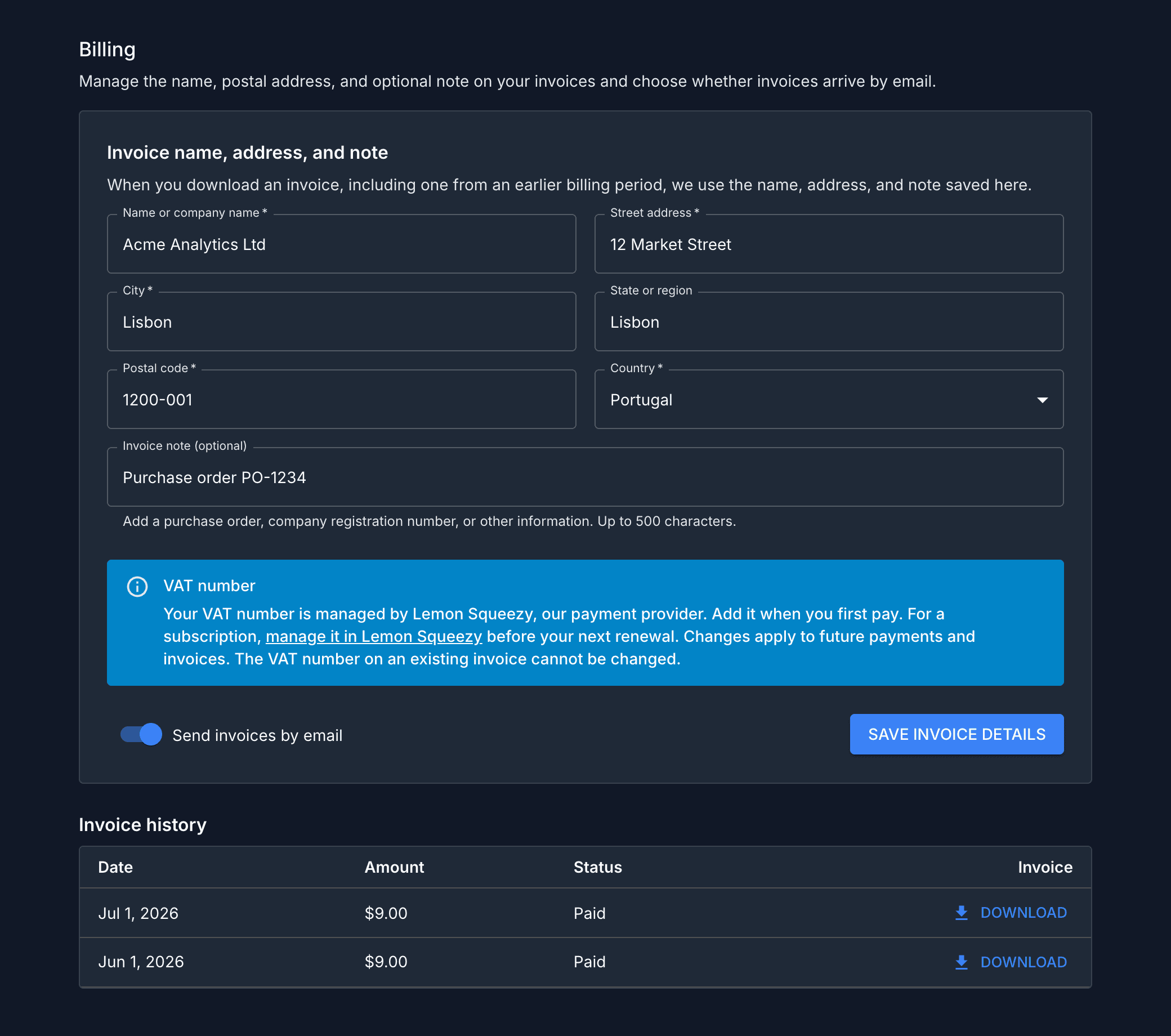
Save the name or company name and postal address that should appear on your invoices. You can also add an optional note for information such as a purchase order or company registration number. The currently saved name, address, and note apply whenever you download an invoice, including invoices from earlier subscription periods.
For plans, renewal charges, cancellation, and refunds, see Billing and invoices.
Lemon Squeezy, the payment provider, manages your VAT number separately. Add it when you first pay. For a subscription, use Manage it in Lemon Squeezy in the Billing section before your next renewal. Changes apply to future payments and invoices. The VAT number on an existing invoice cannot be changed. You can also open the Lemon Squeezy billing portal directly.
Keep Send invoices by email on to receive each new invoice as a PDF attachment at your Page Analytics account email. If you have not saved an invoice name and address, each successful payment email links back to this section so you can add them and download the invoice. Turn the switch off if you prefer to download invoices yourself. This preference controls invoice and billing-detail emails separately from product-update emails.
Invoice history includes invoices from current and previous subscriptions. Use Download to generate a PDF with your currently saved name, address, and optional note.
Account
The top of the settings page shows your Google account: avatar, display name, and email. Page Analytics signs you in with Google, so there is no separate password to manage here.
Delete your account
The Danger Zone at the bottom of the page lets you permanently delete your account. Click Delete Account, then type your email address to confirm.