
Connect AI tools with MCP
Page Analytics runs an MCP server that gives AI tools direct access to your Google Analytics and Search Console data. With it, you can run reports, check indexing status, and investigate spam from inside Claude, ChatGPT, Cursor, and other tools that support the Model Context Protocol.
What MCP gives you
The Model Context Protocol is a standard way for AI tools to call external data sources. Once you connect Page Analytics, your AI tool can pull your own GA4 and Search Console data and answer questions with it. The AI tool gets a set of actions it can run on your behalf:
- List the websites you have access to, with their GA4 and Search Console connections
- Run GA4 reports with the metrics and dimensions you ask for
- Look up the custom dimensions and metrics available on a GA4 property
- Run Search Console queries for keywords, pages, and search performance
- Check Google's indexing status for a specific URL
- Pull engagement data to help spot bot and spam traffic in GA4
The AI tool decides which of these to use based on your question, the same way it picks any other tool.
Create an MCP key
Each AI tool connects using its own key. Manage keys in your dashboard under Settings, in the MCP section.
To create a key:
- Choose to create a key and give it a name, for example the device or tool it's for.
- Confirm. The full key is shown once, right after you create it.
- Copy the key and store it somewhere safe.
After creation, each key appears in a list with its name, a short prefix so you can tell keys apart, whether it's active, when it was last used, and when it was created.
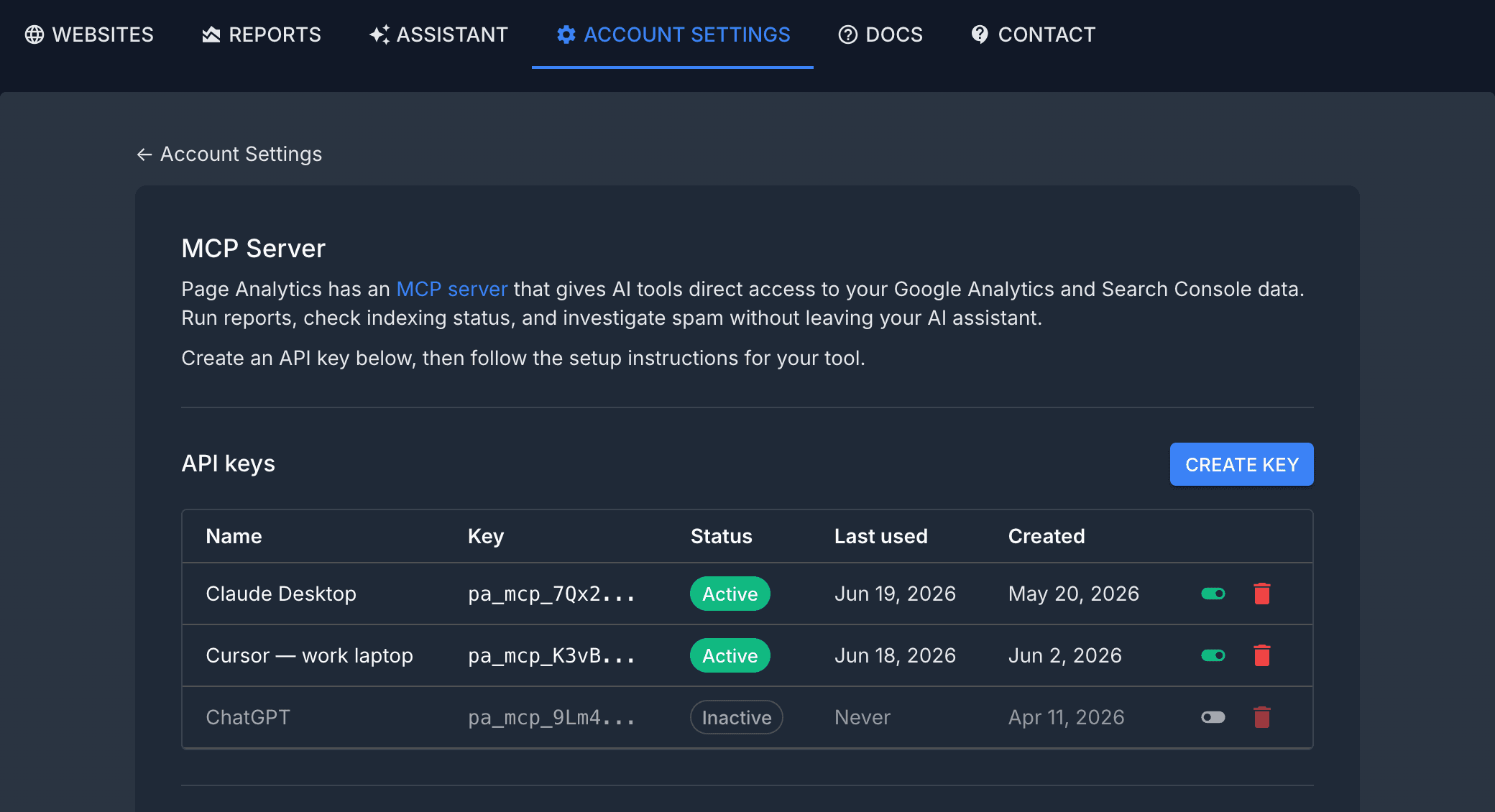
Manage keys
From the keys list you can:
- Deactivate a key to stop it from working without deleting it, then activate it again later.
- Delete a key permanently. Do this if a key is exposed or no longer needed.
A key only carries access to your analytics data. Use a separate key per tool or device so you can turn one off without affecting the others.
Connect a client
The settings page gives you everything you need to connect, with two paths depending on your tool.
For tools that take a server URL directly, such as Claude and ChatGPT in developer mode, copy the Page Analytics MCP server URL. The URL includes your key.
For tools that read MCP servers from a config file, such as Claude Code, Cursor, Windsurf, and the Codex CLI, the settings page shows a ready-made config snippet for each one, along with where to put it. Copy the snippet for your tool and paste it into that tool's MCP config.
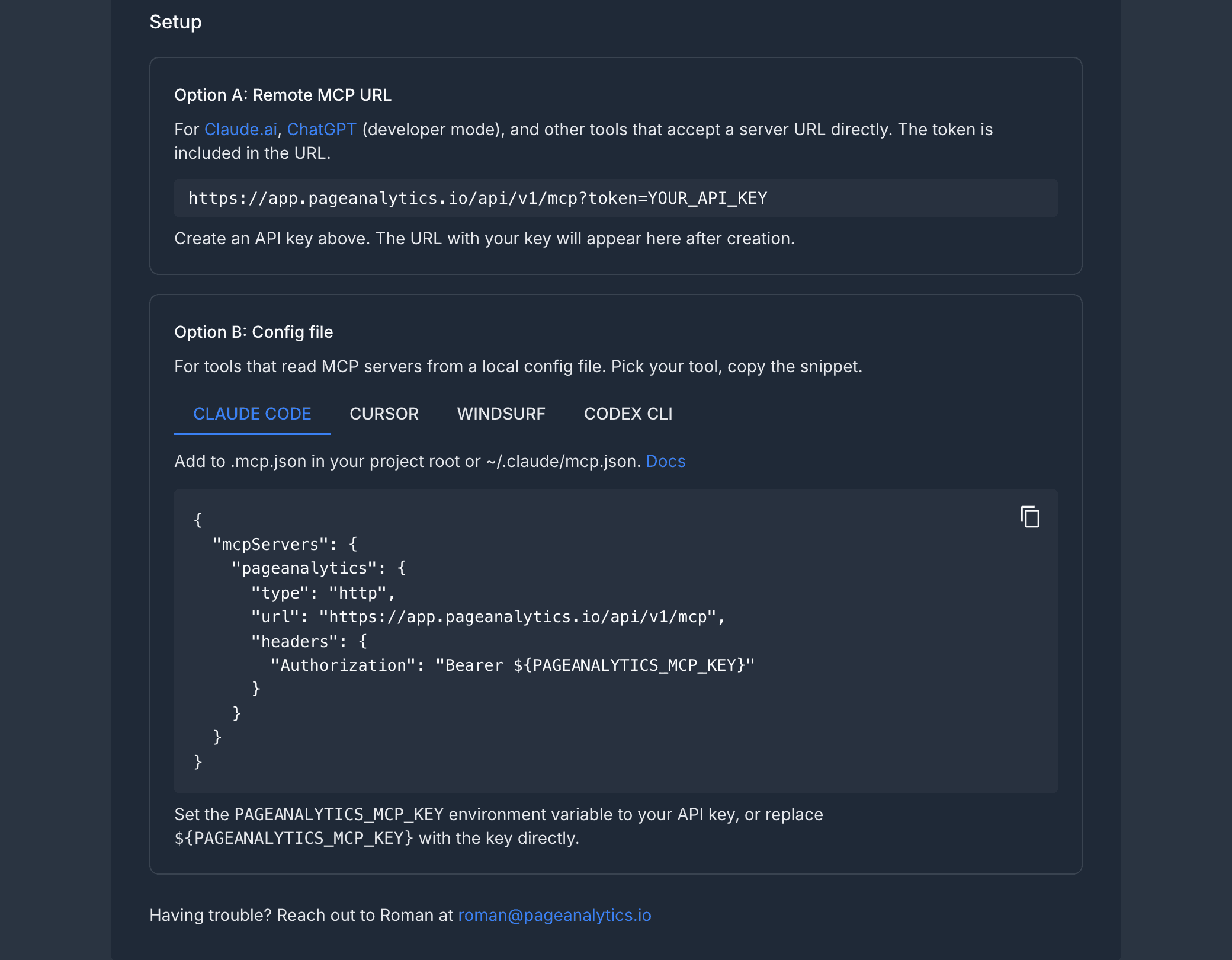
Once connected, ask your AI tool about your site. A good first request is to list your websites, which tells the tool which GA4 properties and Search Console sites are available before it runs a report.
If you get stuck connecting a tool, reach out to roman@pageanalytics.io.