
Your Search Console data
With Google Search Console connected, Page Analytics shows the search side of each page: the queries people use to find it, how often it shows up in Google, and whether Google has indexed it.
Search Console connects through the same Google sign-in as the extension. See Install the extension for the sign-in and permission steps.
What Search Console data you see
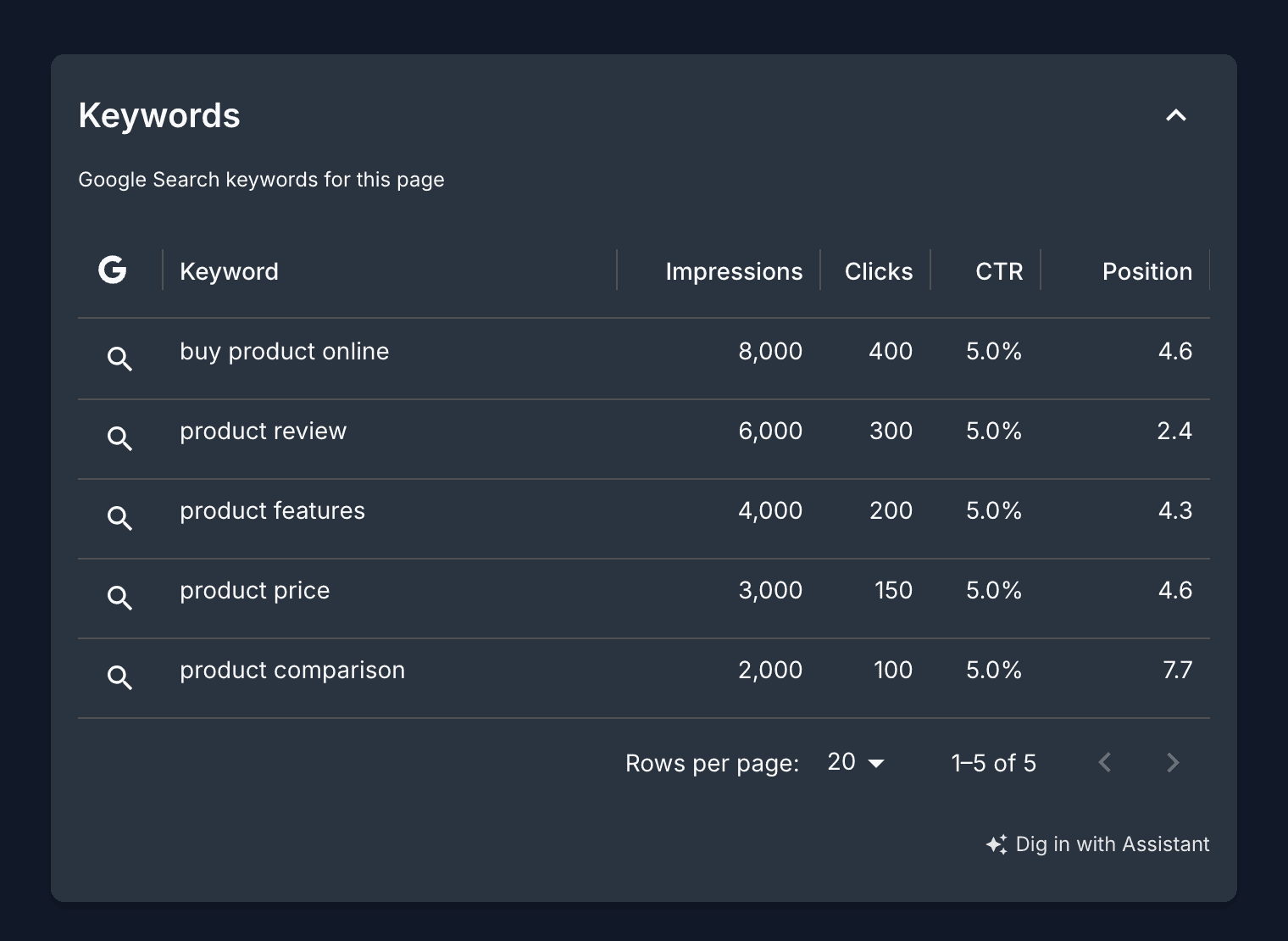
For the page you are viewing, Page Analytics pulls its Search Console performance:
- Search queries (keywords) that brought visitors to the page.
- Impressions: how many times the page appeared in Google search results.
- Clicks from those results.
- CTR: the click-through rate for the page or query.
- Average position in search results.
You can break this down by query, country, device, and over time, and filter to a single page.
Page Analytics matches each website to the right Search Console property on its own, whether you verified it as a domain property or a URL-prefix property. A website card shows a Search Console Connected badge once it is linked. If you skipped the Search Console permission during sign-in, use Sign In to Update Permissions to grant it. If a property is missing because your Google account cannot see it, see Request access to Google Analytics or Search Console.
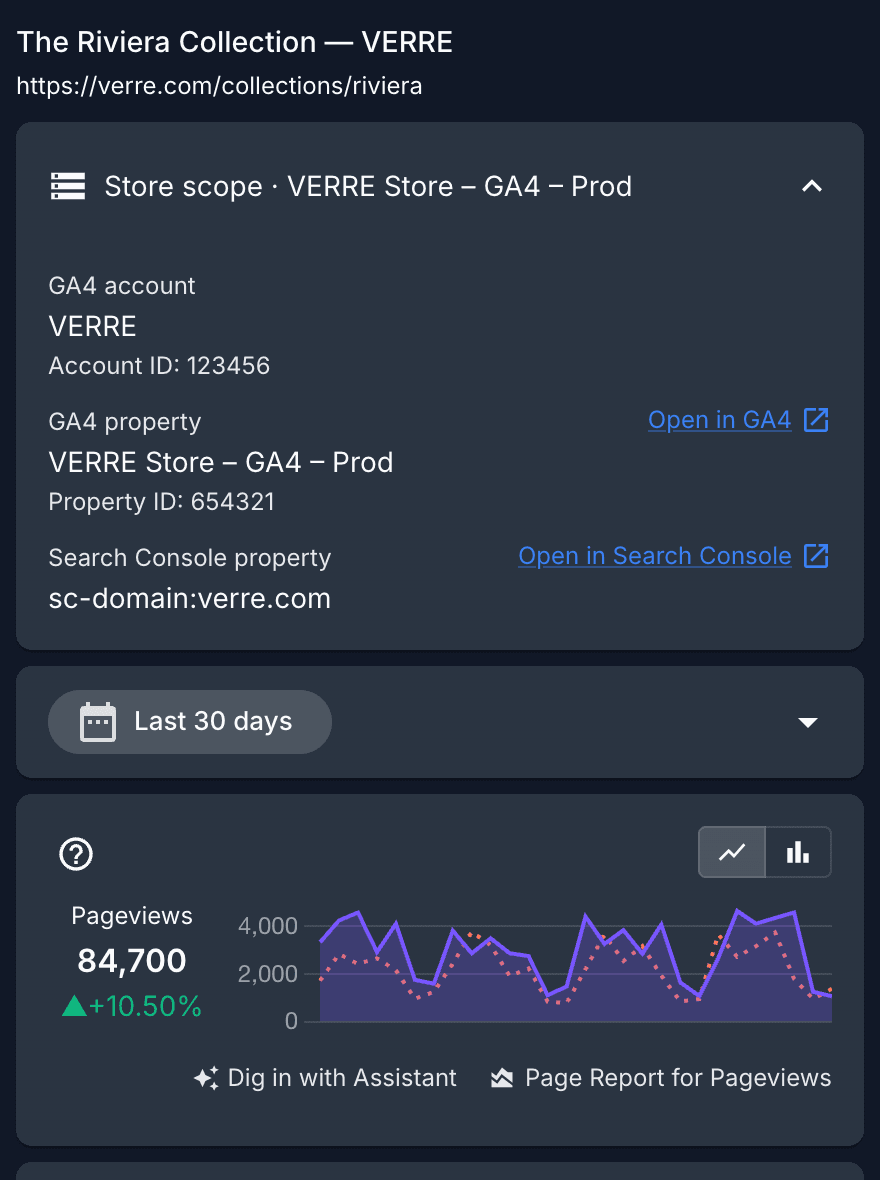
Check the property used for a page
Open the data source row near the top of the sidebar to see the exact Search Console property matched to the page. The row shows the property's exact Google identifier, whether it is a domain property or URL-prefix property. Use Open in Search Console to open that property in a new tab.
Indexing status
Page Analytics can also check a page's indexing status through Google's URL Inspection. For a given URL it reports whether the page is indexable or blocked (for example by a noindex tag or robots.txt), whether Google could fetch the page, and when it was last crawled. Use it to confirm a page is eligible to appear in search.
Where it shows up
- The extension popup and sidebar. Open Page Analytics on a page to read its search queries alongside its GA4 traffic.
- The dashboard reports. See search performance per page, with charts and query tables.
- Through the AI assistant and MCP. If you connect an AI tool, it can run Search Console reports and inspect indexing status for any of your pages.
Next steps
- Connect your Google Analytics data if you have not already.
- Use the sidebar to read search and traffic data in place.