
Set up precise heatmaps with Google Tag Manager
Precise heatmaps track every link click on your site, not just the ones GA4 records by default. This page shows you how to set that up in Google Tag Manager (GTM). You need GTM installed on your site and a GA4 Measurement ID.
Create the link-click trigger
Start with a trigger that captures every link interaction on your site.
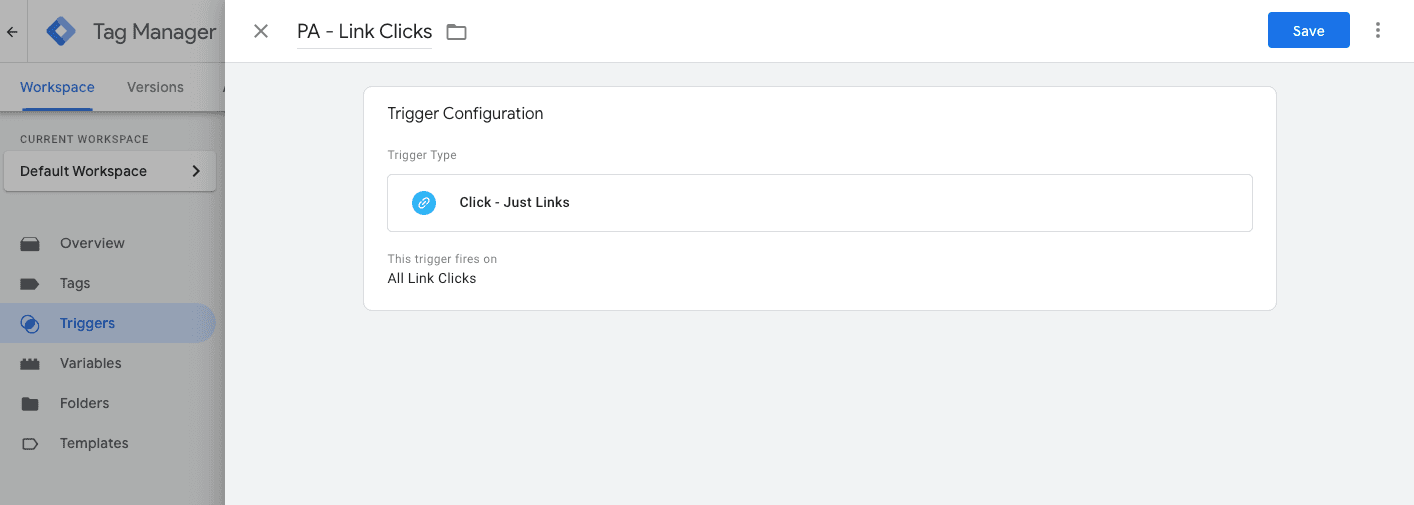
- Go to the Triggers section
- Click New to create a trigger
- Choose Just Links as the trigger type
- Configure it to fire on All Link Clicks
Enable the required variables
Enable the built-in variables that the tag needs.
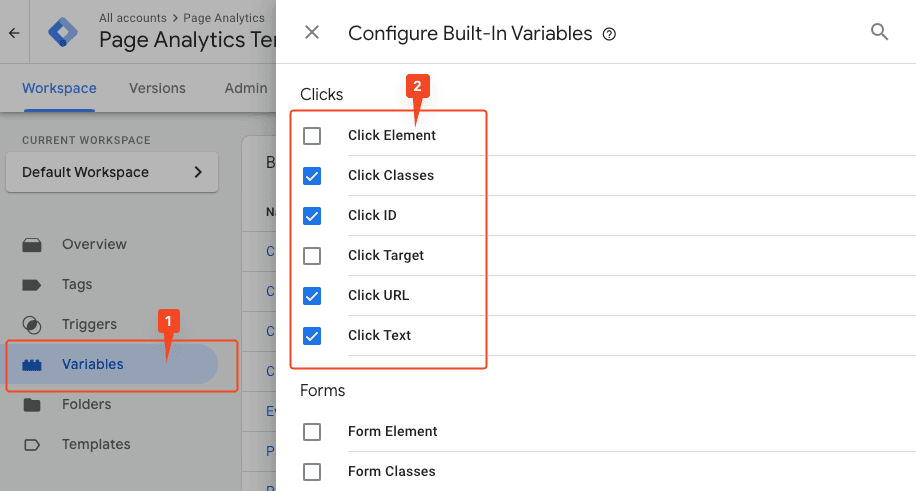
In the Variables section, under Configure, enable these Click variables:
- Click Classes
- Click ID
- Click URL
- Click Text
Create the GA4 event tag
Set up a GA4 event tag to send the click data.
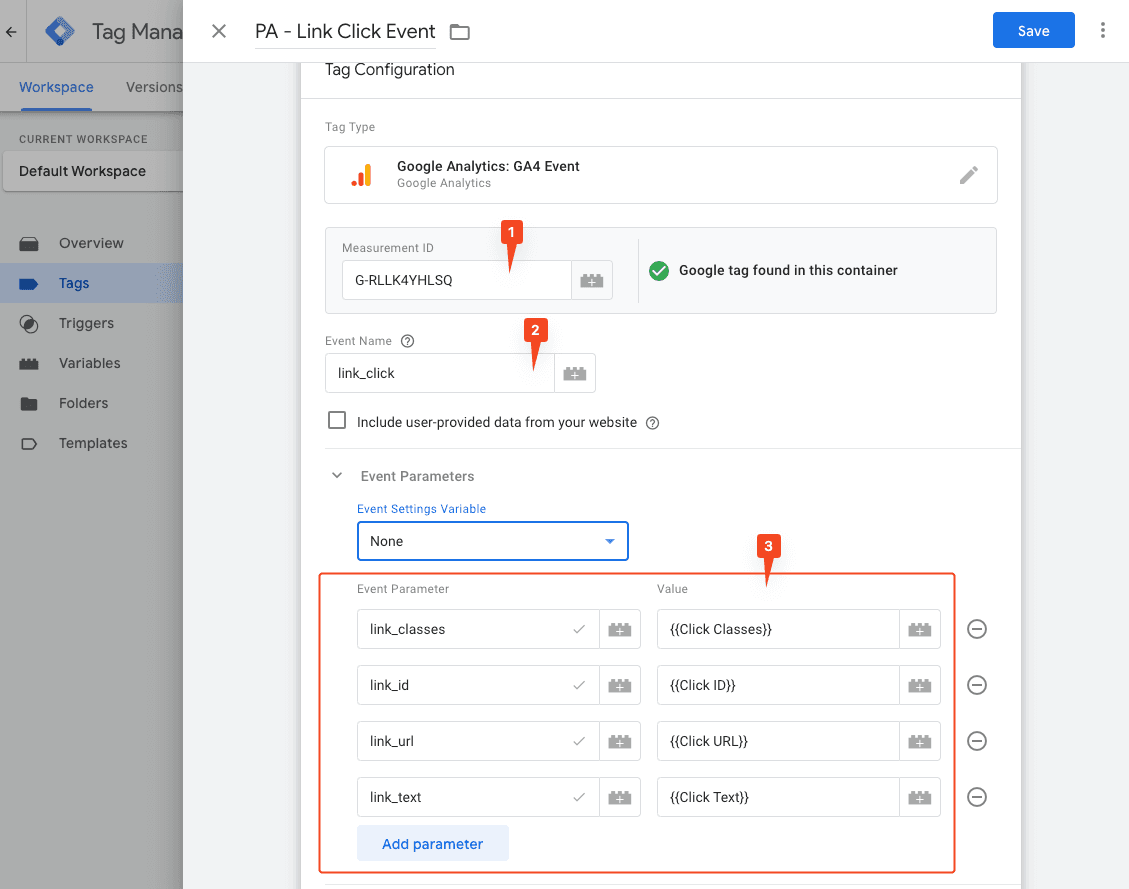
- Create a new tag of type Google Analytics: GA4 Event
- Enter your Measurement ID
- Set Event Name to
link_click - Add these Event Parameters:
- link_classes:
{{Click Classes}} - link_id:
{{Click ID}} - link_url:
{{Click URL}} - link_text:
{{Click Text}}
- link_classes:
Connect the tag and trigger
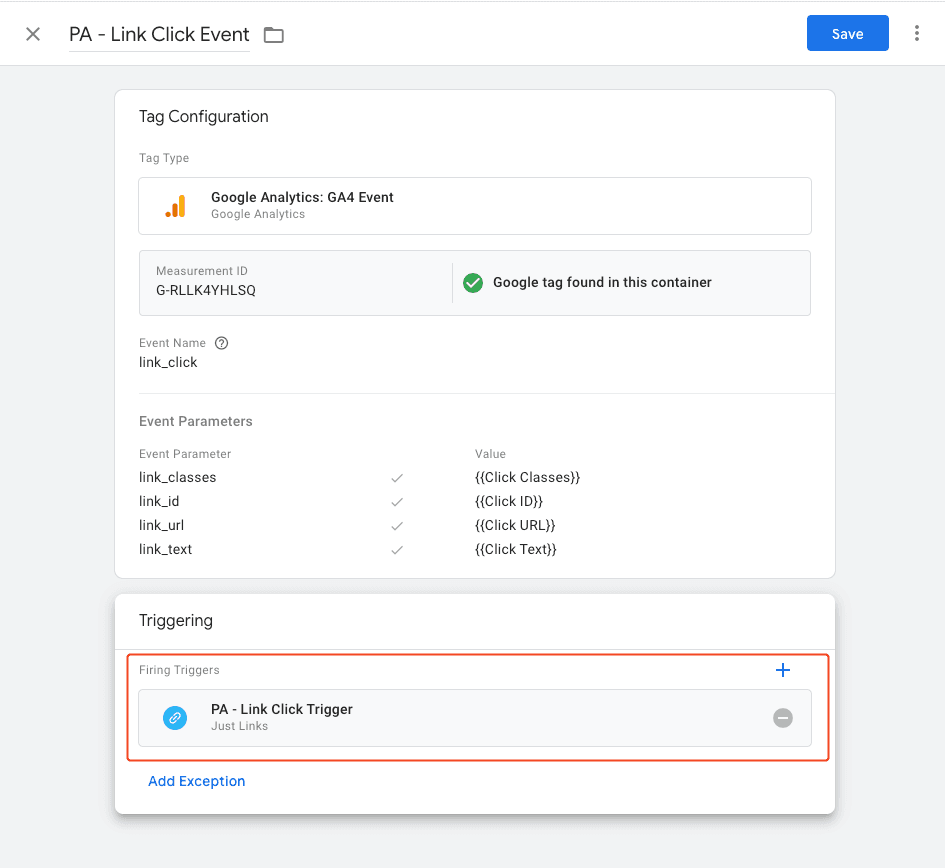
Connect the new tag to the link-click trigger.
Enable precise analytics
To finish, email Roman:
- Send an email to roman@pageanalytics.io
- Include this information:
- Your email address, if different from the sender
- Your website URL
- Ask to activate precise Page Analytics tracking